
Hexagon Absolute Arm Setup Guide
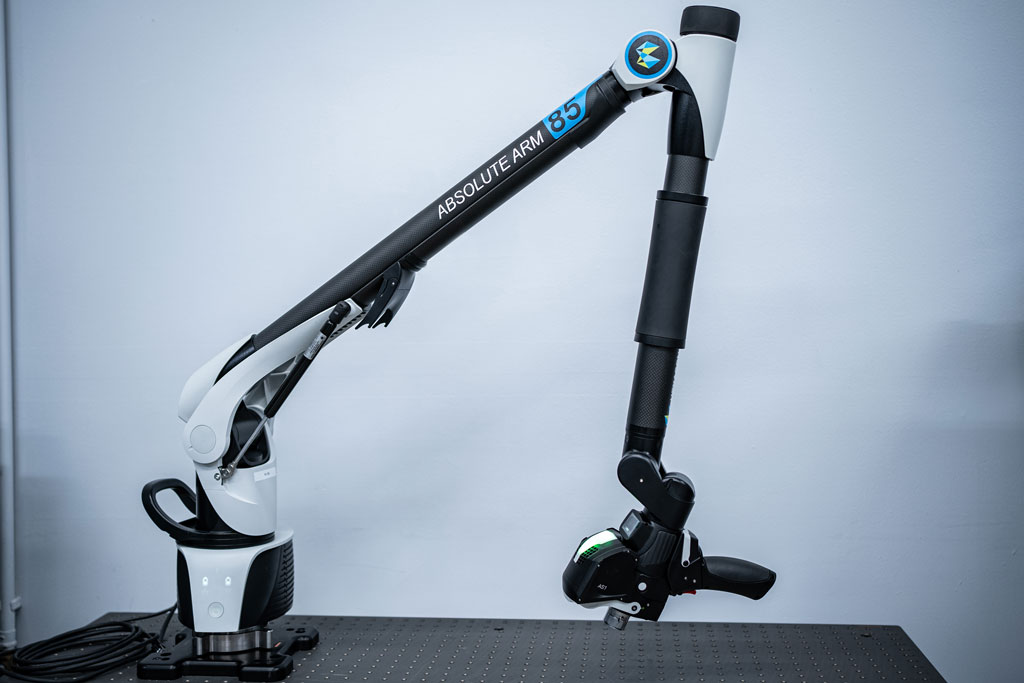
Welcome to your Hexagon Absolute Arm setup guide. Whether you’ve just received your new Absolute Arm or are reconnecting your system, this guide will walk you through unboxing, mounting, connecting, and launching your Arm with RDS software.
This resource contains:
- What’s included with your Absolute Arm
- Step-by-step setup instructions
- Online training resources (RDS101)
- Documentation checklist
- Support references
What’s included with your Hexagon Absolute Arm
Before beginning setup, verify that all components are present. Options packages may vary.
- Probe kit
- Power supply
- USB/Ethernet cable
- Bar artifact
- Base plate
- Magnetic base
Your Absolute Arm should include an inventory list, Sphere Certificate, Arm Certificate, and Bar Artifact Certificate. If any components or documentation are missing, contact PQI support.
Setting Up Your Arm
- Prepare the Mounting Surface
- Set magnets to the ON position
- Ensure the base is securely mounted to a magnetic surface
- For non-magnetic surfaces, use C-clamps to secure the base
- Confirm the base is stable before mounting the Arm
- Mount the Absolute Arm
- Carefully remove the Arm from its case using two hands
- Place the Arm on the threaded section of the mounted base
- Adjust and secure
- Connect Power & Cables
- Connect the power supply
- Connect the USB or Ethernet cable to your laptop or workstation
- Turn on the Arm
Video Guide
Our video walkthrough demonstrates proper handling, mounting, cable connection, and initial startup to ensure appropriate installation.
Laptop & Software Setup
If you purchased your laptop directly from Hexagon or through PQI, RDS should already be installed on your device. If not, download the RDS Arm Utility Software, then follow the connection steps below.
Step 1: Open RDS Software
- Launch RDS on your laptop
Step 2: Open Communication Settings
- Click the Communication icon (3rd from the left)
- Click the Gear icon to open the control panel
Step 3: Configure Connection Settings
- Select “connection”
- Choose your instrument type
- Select the correct Control/Feature Pack
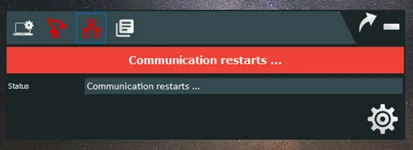
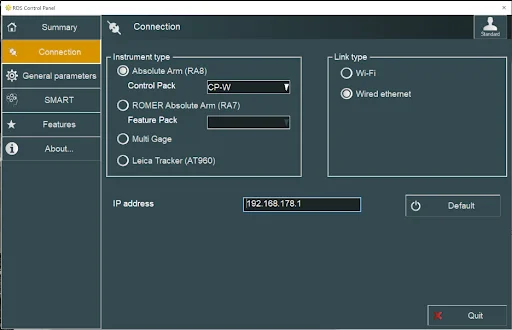
If connection fails, verify cables, power, and instrument selection.
Recommended Training: RDS101 Online Course
It is strongly recommended that new users complete the RDS101 Online Course as soon as possible. It provides a foundation for basic Absolute Arm operation, helps familiarize with RDS navigation and settings, and contains other helpful tips to get started.
If you did not receive and email from Hexagon with your course access link:
- Contact Hexagon directly
- Provide your machine’s serial number
- Request RDS101 course access
For software and measurement training, Hexagon offers regularly scheduled PC-DMIS Arms classes at authorized partner training facilities. PC-DMIS Arms is offered on a monthly basis at PQI in Plymouth, MN.